First, Why Do We Care?#
In 2026, with LLMs and the world on fire—what does HTML have to offer for us? What can we learn from it?
Why should a designer care about HTML?
-
It helps teach us to structure our thinking into organized systems.
-
Separating the meaning (semantics) of content from its visual display encourages flexibility and iteration.
-
Links (hypermedia) are the very foundation of interactive design.
-
It is the underlying fabric of much of our digital lives.
-
It’s easy to learn, and a gateway to other programming languages.
-
It’s (probably) older than you, and shows no signs of going anywhere.
-
Nobody can “acquire” it!
HTML Stands for HyperText Markup Language#
HTML is the standard markup language/format for creating web pages, containing the content and structure of a page as a series of elements.
-
HTML – MDN
When in doubt, refer to the MDN documentation! -
Basics of HTML
A very calming introduction by Laurel Schwulst. -
Organizing Files for the Web
Sasha Portis on (web) file-naming, for when you get to saving.
In our ongoing analogy, HTML is the skeleton of the web. At its most basic it is a text file, in a folder on a computer, with a .html
As we heard in our first class, this format was codified by our pal Tim Berners-Lee in 1991, evolving from his earlier SGML, a similar/proto language. There have been five major revisions to the spec since then, which added (and sometimes deprecated, or removed) tags and syntax:
- HTML 1, 1991
- HTML 2, 1995
- HTML 3, 1997
- HTML 4, 1997 (busy year)
- HTML 5, 2014 (ongoing)
The Basic Document#
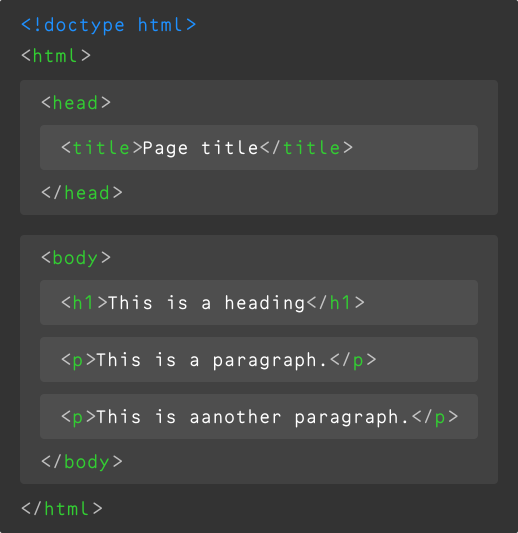
HTML consists of a range of elements, nested inside one another, like a matryoshka doll of text.
The <html><head><title> ,<body><h1><p>
We call these semantic elements—which is saying that they give their contents a meaning or a role. (Remember Tim’s diagram.) These roles are then interpreted by your browser (Chrome, Safari, Firefox, etc.) when it loads the file, to ultimately display the page. We call this parsing the document.
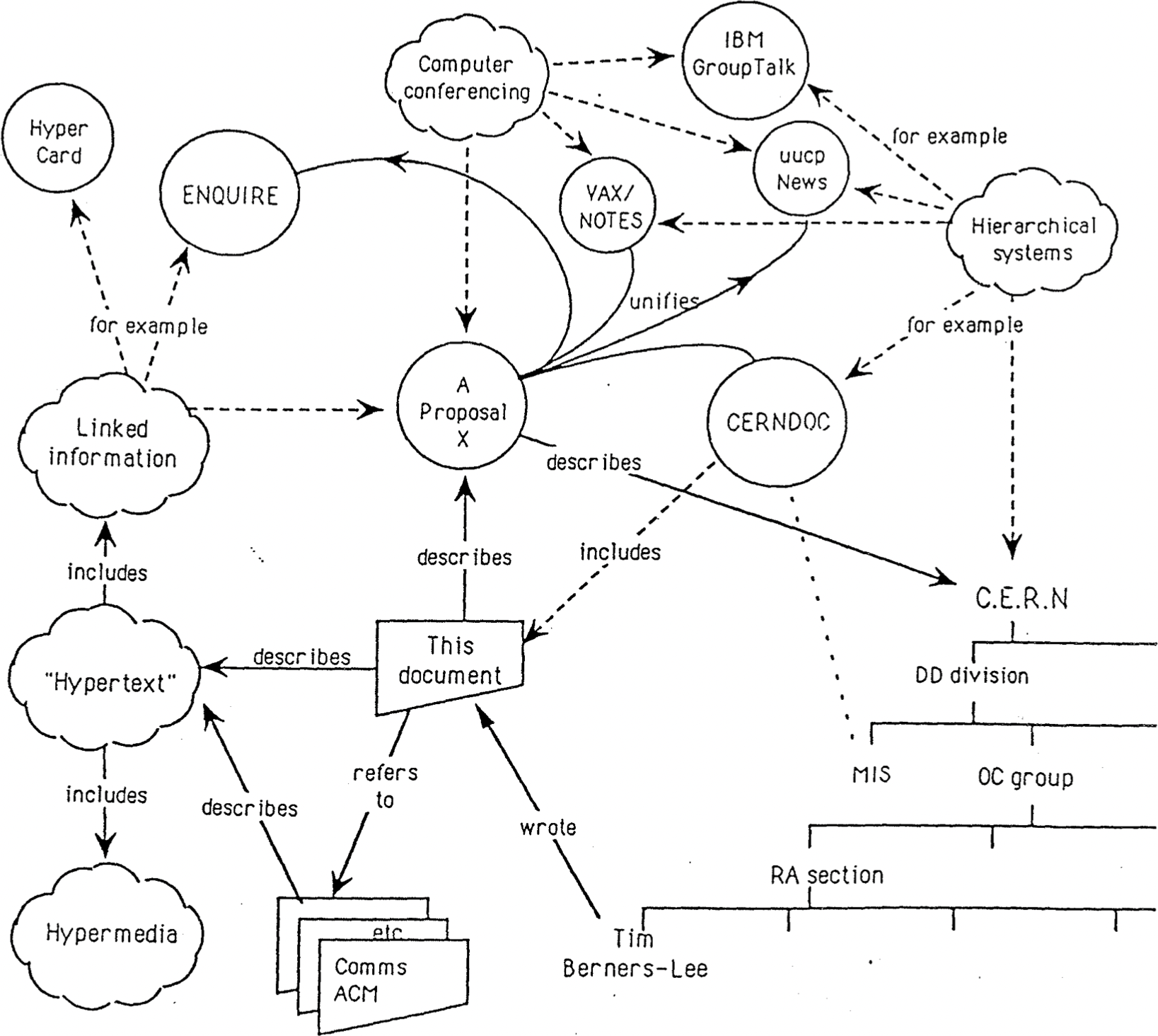
The Semantic Web is not a separate Web but an extension of the current one, in which information is given well-defined meaning, better enabling computers and people to work in cooperation.
What Does That Even Mean#
						<!doctype html>
<html>
	<head>
		<title>Page title</title>
	</head>
	<body>
		<h1>This is a heading</h1>
		<p>This is a paragraph.</p>
		<p>This is another paragraph.</p>
	</body>
</html>
In our example, here is what we’ve told the computer:
-
<!doctype html>What type/version of HTML this file contains, so it knows how to parse it.
-
<html></html>The root element of an HTML page, containing all the content.
-
<head></head>The meta information about the HTML page—like its title, default language, and any scripts and stylesheets it needs to display the page.
Nothing in this element is visible on the page itself!
-
<title></title>Specifies a title for the page—which is shown in the browser’s tab, and when it is shared.
-
-
<body></body>Defines the document’s body—the container for all the visible contents, such as headings, paragraphs, images, hyperlinks, tables, lists, etc.
-
<h1></h1>Defines a primary/first-level heading.
-
<p></p>Defines a paragraph.
-
-
We use semantic elements to help structure and describe our content—but also for accessibility (screen readers)—where the tag type helps indicate what things are.
And as designers—they also help us to organize our systems, and give us hooks for styling (later, in CSS)!
What Are Elements?#
Elements are composed of tags and their content:
HTML Elements Reference – MDN
MDN will always go deep; this is all the elements.

Some elements do not have any content or children, like <br><img> .
-
Headings:
h# -
<h1>There should only be one first-level heading!</h1>There are also
<h2><h3><h4><h5><h6>. -
Paragraphs:
<p> -
<p>You should always wrap your text in a paragraph!</p>Our basic, default text element, whether short or long.
-
Links:
<a> -
<a href="https://www.example.com">Links need attributes!</a>The
<a>The
href= -
<button>Close</button>Differing slightly from links,
<button> -
Images:
<img> -
<img src="example.jpg" alt="Images should have descriptions!">The
srcalt -
Containers
-
						<body>
	<header>
		<!-- A header. -->
	</header>
	<main>
		<!-- Your main content. -->
	</main>
	<footer>
		<!-- The footer. -->
	</footer>
</body>
Some others are
<nav>,<article>,<section>,<div>These are the semantic, structural containers of a website. The names don’t imbue function directly, but help us organize and think about our content structure—and also are helpful for accessibility.
-
Inline Text Elements
-
<p>You <strong>may</strong> notice I like using<em>emphasis</em>.</p>These wrap around bits of text (within headings or
<p>)<span>,<strong>,<em>,<abbr>,<cite>,<time>,<code>,<mark>,<del>,<ins>,<sub>,<sup>. -
Lists:
ol<ul> -
						<ul>
	<li><!-- A list item. --></li>
	<li><!-- Another. --></li>
	<li><!-- A third. --></li>
</ul>
If you have three of something, it is probably a list! There are also
ol,
There are many, many HTML elements, all with particular uses. (We’ll unpack some more, later.)
Attributes#
All HTML elements can have attributes, which provide more information about the element:
HTML Attribute Reference – MDN
There are a lot of them.
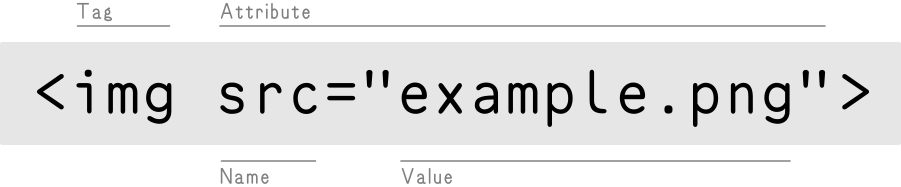
Common Attributes#
-
Language:
lang -
<html lang="en"></html>The
lang<html> -
HyperText Reference:
href -
<a href="https://www.example.com">Goes to example.com</a>The
href<a> -
Target:
target -
<a href="https://www.example.com" target="_blank">New tab!</a>The
target_blank<a>This can be pretty annoying, so use it judiciously!
-
Style:
style -
<p style="color: blue;">This is blue text.</p>The
styleiswas used to add styles to an element, such as color, font, size, etc.Nowadays, this is brittle and wrong for reasons to be explained next week—we’ll use proper CSS!
But know this is how it used to be done and it was terrible!
-
Source:
src -
<img src="example.jpg">The
src<img><iframe src="https://typography-interaction-2627.github.io"></iframe>Same thing for an
<iframe>, -
Dimensions:
widthheight -
<img src="example.jpg" width="200" height="200">The
widthheight<img>Not required, but helps prevent layout “sloshing” as images load.
-
Alternate Text:
alt -
<img src="example.jpg" alt="A description of the image.">The
alt<img> -
Identifier:
id -
<h2 id="a-heading-element">A heading element</h2><a href="#a-heading-element">Goes to “a heading element”</a>The
id#. -
Class:
class -
<p class="warning">We’ll get into this soon.</p>The
class
Case, White Space, Tabs, Line Breaks#
Generally speaking, HTML doesn’t care about capitalization, extra white space, or line breaks (one exception, below). The browser will just read everything from left to right, as if it is one long, running sentence. So the shouty <html><html>
How Whitespace Is Handled – MDN
It depends! It always depends.
The browser parses both of these in the exact same way:
						<body>
	<h1>Dog Breeds</h1>
	<p>There are many kind of dog breeds</p>
	<ul>
		<li>German Shepherd</li>
		<li>Bulldog</li>
		<li>Poodle</li>
	</ul>
</body>
						<body><h1>Dog Breeds</h1><p>There
are many kind of dog breeds</p>
<ul><li>German Shepherd</li><li>
Bulldog</li><li>Poodle</li></ul>
</body>
But obviously, the left one here is much more readable to us humans. We can use white space, tabs/indenting, and line breaks to make it easier for us to read the code.
There are a lot of common patterns used—like indenting to indicate hierarchy/nesting. But there are also no wrong ways to do it! In HTML, spaces are code ergonomics for you—just like a good chair or desk—that allow you to work more comfortably.
Code is read more often than it is written. Code should always be written in a way that promotes readability.
Block Elements#
Block-level elements always start on a new line, and take up the full width available—stretching out to the left and right of their parent/container. They stack on top of each other. Importantly, block elements can have a top and bottom margin, unlike inline elements:
Block-level content – MDN
Our larger elements, stacked up.
<address>
<article>
<aside>
<blockquote>
<details><summary>
<dialog>
<div>
<dl><dd><dt>
<figure><figcaption>
<footer>
<form><fieldset>
<h1><h6>
<header>
<hr>
<iframe>
<main>
<nav>
<noscript>
<ol><ul><li>
<p>
<pre>
<section>
<table><thead><tbody><tfoot>
Let’s Try It Out#
These are live, editable examples! Whatever is on the left is rendered on the right.
Inline Elements#
Inline elements do not start on a new line, and only take up as much width as necessary. You can think of these as the little metal slugs from printing, within text. Other text and inline elements will continue to flow around them, and they can wrap to new lines:
Inline-level content – MDN
Smaller, moving within our text.
<abbr><a><br><button><cite><code><del><em><img><ins><kbd><mark><q><samp><small><span><strong><sub><sup><time><var><wbr>
Let’s Try These Out Too#
Inline Whitespace#
Inline elements are the exception to the “white space is generally ignored” rule: extra space between inline elements will always be reduced—collapsed—to one space.
						<p>
	<span>Hello</span>
	<span>World</span>
</p>
…displays as Hello World ,HelloWorld .
So Many Elements#
Comments#
You can comment part of the code and the browser won’t show it. Comments are often used to explain your thinking, organize your code, “turn off” a bit of code, or temporarily hide whatever you’d like.
Using HTML comments – MDN
Always. Be. Commenting.
Keep in mind these are still readable in the source.
Lists#
Any time you have more than two of something, you probably have a list. These are commonly used for semantic navigation elements, as well—think “here’s a list of links in this site”:
Lists – MDN
Lists are everywhere!
Description Lists#
There are specific lists for defining things:
Description list element – MDN
A more-specific, underused type.
These aren’t much to look at without CSS, though. Soon!
Blockquote#
Often (especially in our work), you’ll want to differentiate/indicate some enclosed text with a blockquote
Block quotation element – MDN
In print parlance, also a pull quote.
Again, these aren’t much to look at without CSS but they have an important semantic meaning!
Tables#
Tables can we used to display tabular data:
Table element – MDN
Before everything was a div ,table .
This syntax is pretty verbose, for what you get—only reach for this if it fits the information.
They used to be the only way to achieve multi-column or grid layouts, but that has luckily since been replaced by modern CSS techniques like flexbox ,grid .float .
Details / Summary#
There is even some basic interactivity (way, way ahead of JavaScript) with details disclosure elements that open and close:
Details disclosure element – MDN
Some basic interactivity!
You can do a lot with these, without any JavaScript! Our navigation is built with them! Adding the name
Popovers#
HTML continues to evolve, very recently adding native (non-JS) support for popovers—click one thing, display another! You can do this natively now:
popover
Even more flexible interactivity!
No JS needed! This opens up a lot of interactive possibilities.
Modal Dialogs#
There is also a more specific kind of popover that is called a dialog
Dialog element – MDN
These also used to need a fair bit of JS!
You can also use your
Again, there are many, many, many, many HTML elements. Try and find the one that best fits your usage, wherever possible using a semantic element that fits your content.
User-Agent Styles#
We haven’t applied any styles/CSS here yet, so everything we see in these examples is based on the user-agent stylesheets—that is, each browser’s own default display (and behavior) for an element type.
This is what the web was, before CSS! But as a designer, rarely what you want. We’ll get into writing our own styles in the coming weeks.
In case of conflict, consider users over authors over implementors over specifiers over theoretical purity.
In other words costs or difficulties to the user should be given more weight than costs to authors; which in turn should be given more weight than costs to implementors; which should be given more weight than costs to authors of the spec itself, which should be given more weight than those proposing changes for theoretical reasons alone.
Of course, it is preferred to make things better for multiple constituencies at once.